
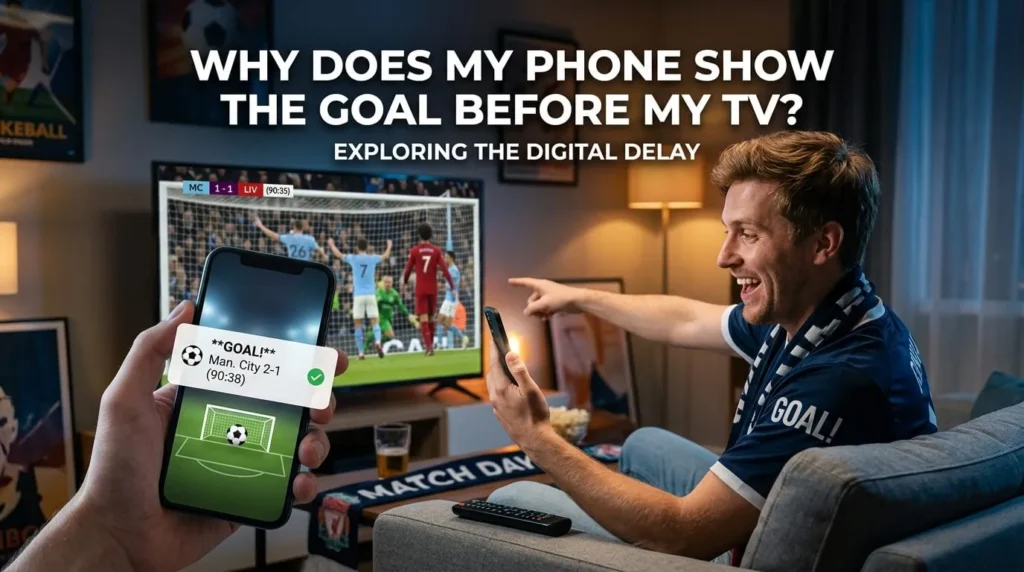
The striker receives the ball at the edge of the box. He turns, slips past a defender and prepares to shoot.
Then your phone vibrates.
GOAL.
The television is still showing the buildup.
A few seconds later, the shot finally reaches the net on your screen. Everyone in the room celebrates, but the surprise has already gone. Your phone knew the result before your television showed the action.
This happens during football, basketball, hockey, baseball and other live sports. A score app may update first. A friend might message you before you see the play. Someone in the next apartment may cheer while the ball is still moving through midfield on your TV. Even two screens inside the same house can show different moments of the same match.
The reason is simple: live television is rarely as live as it appears.
Your phone receives a tiny piece of information saying that a goal was scored. Your television must receive a continuous video feed, hold part of it in a buffer, decode the picture and sound, and display the finished result. That longer route creates a delay.
Internet speed can affect it, but speed is only one part of the answer. The broadcast source, streaming platform, content delivery network, app, media player, home network and television can all add time.
This guide explains where those extra seconds come from, why phone alerts move faster than video, what you can do to reduce IPTV streaming delay and how to stop notifications from spoiling the match.
The short answer
Your phone shows the goal before your TV because a score notification carries very little data, while live video has to be recorded, processed, encoded, distributed, buffered, decoded and displayed.
Each step takes time.
A live-score provider can record an event and send a short update to your phone within seconds. A television stream must deliver moving images and audio without constantly stopping. To keep playback stable, streaming apps usually hold a small amount of video before showing it. That stored video protects against connection changes, but it also puts your screen behind the event.
This time difference is called latency.
If your connection is weak, the app may increase its buffer or pause to collect more video. If you paused or rewound the match, you may be even farther behind. An older streaming device can also take longer to process the feed.
That is why a faster internet plan does not always remove the delay. It may improve stability, yet it cannot recover time already added by the broadcaster or streaming system.
What is live-streaming latency?
Latency is the amount of time between an event happening and that event appearing on your screen.
Imagine that a goal is scored at exactly 8:30:00 p.m. If it appears on your television at 8:30:18 p.m., your stream has about 18 seconds of end-to-end latency.
The phrase “end-to-end” matters because the delay does not come from one place. It is the total of several smaller delays along the way.
The camera captures the shot. The production team prepares the broadcast feed. The video is compressed. Servers create versions for different connection speeds and screen sizes. A content delivery network sends the feed toward your region. Your internet provider carries it to your router. Your streaming device downloads a segment, decodes it and hands it to the television.
A delay of one or two seconds at several points can quickly become 10, 20 or 30 seconds.
Some online streams can fall farther behind. The exact amount changes according to the broadcast, app, player settings, video format, device and network conditions. There is no single delay shared by every live channel.
Latency is not the same as buffering
People often use “latency” and “buffering” as if they mean the same thing, but they describe different problems.
Latency means your screen is behind the live event.
Buffering means the player is collecting video data before playback starts or resumes. If it cannot collect data fast enough, you may see a spinning circle, frozen picture or loading message.
A stream can have high latency without visible buffering. The picture may be smooth and clear, yet remain 30 seconds behind the stadium.
A stream can also have low latency and buffer frequently. It may stay close to real time but stop whenever the connection dips.
The player has to balance these two risks. A larger playback buffer usually produces steadier video, but it adds delay. A smaller buffer can bring the stream closer to real time, but it leaves less protection against an unstable connection.
For a movie, a delay of 20 seconds does not matter. For a football match, 20 seconds can be the difference between suspense and a spoiled goal.
How a live match reaches your television
To understand why your phone wins the race, follow the video from the stadium to your living room.
1. Cameras capture the match
Several cameras record the action from different positions. The production crew chooses which angle viewers will see. Graphics, commentary, replays and score information may be added to the outgoing feed.
This work happens quickly, but it is not instantaneous. The broadcast may include an intentional delay as well.
2. The feed is encoded
Raw video from professional cameras contains a huge amount of data. Sending it directly to millions of homes would be impractical, so the feed has to be compressed.
An encoder turns the video into a smaller digital format. Common video codecs include H.264 and H.265, also called HEVC.
Compression takes processing time. The encoder has to examine the picture, remove repeated information and prepare a stream that devices can play.
Some systems favor speed. Others favor picture quality or efficient bandwidth use. The chosen settings affect latency.
3. Different versions are created
One viewer may have a fast fiber connection and a 4K television. Another may be watching on a phone over mobile data. A streaming platform may prepare several versions of the same broadcast at different resolutions and bitrates.
This process is called transcoding.
It allows adaptive bitrate streaming. If your connection weakens, the player can move to a lower-quality version instead of stopping completely. If conditions improve, it can return to a sharper version.
Those choices make streaming more dependable, though creating and switching between several versions can add processing time.
4. The stream is split into segments
Many live services use HTTP Live Streaming, known as HLS, or MPEG-DASH. Rather than sending one endless video file, these methods divide the broadcast into smaller sections.
Your player downloads the sections in order.
If each segment contains several seconds of video, the player may wait for one or more segments before it begins. It then keeps downloading new segments while you watch the previous ones.
This design works well across ordinary internet connections. It also explains why a stream can sit behind real time even when your internet seems fast.
5. A content delivery network sends the feed closer to you
A content delivery network, or CDN, uses servers in different locations to distribute video. Instead of making every viewer connect to one distant server, the network can serve content from a location closer to the audience.
Your route still includes several systems. Traffic levels, server load and the distance between network points can affect delivery time.
6. Your internet provider carries the data home
The stream passes through your internet service provider and reaches your modem or router.
At busy times, network congestion can reduce performance. This does not always create a fixed broadcast delay, but it can make the player buffer or select a lower bitrate.
7. Your home network sends it to the device
If you use Ethernet, the video travels through a cable to your streaming device or television.
If you use Wi-Fi, the signal crosses the room by radio. Walls, furniture, nearby routers, Bluetooth equipment and other household devices can interfere with it.
The speed advertised by your internet provider is not necessarily the speed reaching the television. A fast plan cannot help much if the TV has a weak wireless connection.
8. The app fills its playback buffer
Before showing the match, the streaming app usually stores a small amount of upcoming video.
Think of the buffer as a reservoir. The player fills it while the connection is running well. If the connection slows briefly, playback can continue using the stored video.
The deeper the reservoir, the longer it can survive a slowdown. The tradeoff is that you watch video that arrived several seconds earlier.
9. The device decodes the video
Your Fire TV Stick, Android TV box, smart TV, phone or other device decompresses the video. Older or less powerful hardware may need more time, especially with high-resolution streams or newer codecs.
Background apps, low storage space, heat and outdated software can also affect performance.
10. The television processes the picture
The television may apply motion smoothing, upscaling, noise reduction, color adjustments or other picture processing before displaying the image.
This delay is normally small compared with the full streaming chain. Certain picture modes can still add noticeable response time.
By the time you see the goal, the video has completed every one of these steps.
Your phone alert has a much shorter trip.
Why score notifications reach your phone first
A score update might contain only a few pieces of information:
- The match identifier
- The team that scored
- The updated score
- The player or event name
- The match time
That is a tiny amount of data compared with live video.
A high-definition video stream delivers a new sequence of images and sound every second. A push notification only needs to deliver enough text to say, “Goal: Home Team 1-0 Away Team.”
Sports data providers collect match events through official feeds, venue systems or human operators. Once a goal is confirmed, the provider updates its data feed. A sports app receives the update and sends a push notification through the phone’s notification system.
The phone does not need to download the camera angle, commentary, crowd sound, replay or score graphic. It only needs the event data.
A message from a friend can work the same way. Your friend may be watching through cable, satellite, terrestrial television or a stream with lower latency. Their message reaches you faster than your video catches up.
This is why disabling one score app may not solve every spoiler. Social media posts, group chats, smartwatches and cheers from nearby homes can all reveal the goal first.
Why broadcast methods do not show the same moment
Two people can watch the same match through different delivery systems and see it at different times.
One person may use an antenna. Another may use cable. A third may use satellite. You may be watching through an internet-based television service.
Each method has its own processing and delivery chain.
A traditional broadcast can also include delay, but online streaming often adds more stages. The video may be encoded into segments, sent through a CDN and stored in the player’s buffer before appearing on the television.
The channel source matters too. Two apps carrying coverage of the same match may receive different production feeds. One feed may already be several seconds behind another before either reaches the viewer.
This explains the neighbor problem. You hear cheering through the wall, then see the goal on your television a few seconds later. Your neighbor may have a lower-latency source, a smaller playback buffer or a different television provider.
It does not automatically mean your service is malfunctioning.
Why two TVs in the same house can be out of sync
Put two screens side by side and you may discover that one is several seconds ahead.
That can happen even when both devices use the same internet connection and open the same channel.
The devices may have:
- Different streaming apps
- Different media players
- Different buffer sizes
- Different Wi-Fi signal strength
- Different processor speeds
- Different video codecs
- Different playback positions
- Different picture-processing settings
One television may connect by Ethernet while the other uses Wi-Fi. One app may begin with a larger reserve of video. One device may have paused briefly and never returned to the live edge.
Automatic quality selection can also separate them. If one player switches to another bitrate, it may temporarily collect more video before continuing.
To synchronize two screens, start by reopening the stream on both devices at roughly the same time. Use the same app, player and connection type when possible. If the player offers a “Go Live” button, select it on both screens.
Perfect synchronization is not guaranteed. Consumer streaming systems are designed to keep playback stable, not to make every screen display the same frame at the same instant.
Why a stream falls farther behind as the match continues
A fixed delay is normal. A delay that keeps growing deserves attention.
Suppose the stream begins 15 seconds behind. After half an hour, it is 45 seconds behind. By the end of the match, it is more than a minute late.
This usually means the player has experienced interruptions and failed to recover the lost time.
Each brief slowdown may cause the app to pause, refill its buffer and resume from the same point. Playback remains smooth after the pause, but the stream is now farther from the live edge.
Some players automatically skip ahead after a disruption. Others continue from the delayed position.
Pausing the match creates the same result. When you press play again, the app may continue where you stopped rather than jumping to the newest available segment.
Look for a live indicator or progress bar. If the play marker is behind the live point, move it forward. On some apps, changing the channel and returning will reload the current live position.
Repeatedly losing time can point to weak Wi-Fi, network congestion, an overloaded device or a player that uses a large buffer.
Does faster internet reduce live-streaming delay?
Sometimes, but not in the way many people expect.
A faster connection can help your device receive video segments quickly. It can reduce interruptions and prevent the player from building a larger safety buffer. It may also allow steady playback at a higher resolution.
It cannot remove delay that already exists before the stream reaches your home.
If the broadcaster, encoder and distribution system have added 20 seconds, upgrading from a 100 Mbps plan to a 500 Mbps plan will not recover those 20 seconds. Both connections may download the available segment almost immediately, but neither can download video that the provider has not released yet.
Stability often matters more than the highest advertised speed.
A steady connection that supplies enough bandwidth for the selected stream can perform better than a faster connection that repeatedly drops. This is one reason Ethernet often works well for live sports.
You should also distinguish between bandwidth and network latency.
Bandwidth describes how much data the connection can carry.
Network latency describes how long data takes to travel between points.
A wide pipe can carry plenty of video, but the route and processing time still affect when the video arrives.
Does Ethernet reduce IPTV latency?
Ethernet can reduce delays caused by an unstable home network. It provides a direct wired connection between your router and streaming device.
Wi-Fi has to share radio space. Signal strength changes with distance, walls and interference. If packets are delayed or lost, the player may wait for more data or increase its buffer.
A cable avoids most wireless interference. It can improve consistency and reduce the chance that your stream falls farther behind during the match.
Ethernet will not erase upstream broadcast latency. If the source is already delayed, both Wi-Fi and Ethernet receive that delayed feed.
Its main benefit is preventing your home network from adding more trouble.
If a wired connection is practical, test it before an important match. You do not need the most expensive cable. A normal cable that supports your equipment’s network speed should be enough.
Can 4K streaming increase the delay?
A 4K stream contains more picture data than a lower-resolution stream. It requires more bandwidth and more decoding power.
On a suitable connection and modern device, 4K may play without adding a noticeable local delay. On weaker hardware or congested Wi-Fi, the player may need a larger buffer to keep the picture stable.
The device may also take longer to decode a demanding format.
If your 4K stream freezes, changes quality or continues falling behind, test the same channel at 1080p. A lower resolution may remain closer to the live edge because the device can download and process it more easily.
That does not mean 4K always has more latency. The platform may prepare its resolutions through the same workflow, and all versions may carry a similar original delay. The result depends on the source, app, player and equipment.
For live sports, a steady 1080p picture is often more enjoyable than a sharper image that repeatedly stops.
Can a VPN make the stream slower?
A virtual private network routes your traffic through another server. That extra route can increase network latency or reduce available bandwidth, especially when the server is distant or busy.
The result may be a longer startup time, more buffering or a player that builds a deeper reserve.
A nearby, lightly loaded VPN server might have little visible effect. A distant one may create a clear difference.
If you are troubleshooting a delayed or unstable stream, compare playback with the VPN disconnected, provided doing so is safe and appropriate for your connection. This test can show whether the route is contributing to the problem.
Do not assume that a VPN is always the cause. Broadcast processing, app buffering and device performance may account for most of the delay.
Can an overheating streaming device cause problems?
Small streaming sticks can become warm during long viewing sessions. High-resolution video decoding, limited ventilation and nearby heat from the television can raise the temperature.
When a device becomes too hot, it may reduce performance to protect itself. Apps can respond slowly, video may stutter and the player may struggle to maintain playback.
Heat usually does not create the original broadcast delay. It can cause interruptions that push the stream farther behind.
Make sure the device has room for airflow. Avoid trapping it tightly between the television and a wall. If the manufacturer supplied an HDMI extension cable, using it may move the stick away from the hottest part of the television.
Restart the device if it has been running for a long time. Persistent overheating may indicate a power, ventilation or hardware problem.
How to reduce IPTV delay during live sports
You cannot control every stage between the stadium and your screen. You can reduce the delay added inside your home and prevent the stream from drifting farther behind.
Work through the following checks one at a time. Testing one change at a time makes it easier to identify the cause.
Return to the live edge
Look for a “Live,” “Go Live” or similar control in the player.
If you paused, rewound or experienced a long interruption, the play position may be behind the newest available video. Selecting the live position can remove the extra delay you accumulated.
If there is no live button, change to another channel and return. Reopening the stream often loads the newest segment.
Avoid pausing during the match
When you resume after a pause, many players continue from the exact moment you stopped. You remain behind unless you manually jump forward.
Even a 10-second pause can be enough for your phone notifications to spoil the next goal.
If staying close to real time matters, reopen the channel after pausing instead of continuing from the old position.
Use Ethernet when possible
Connect the television, Android TV box or compatible streaming device directly to your router.
Then watch long enough to compare the result. A five-second test may not reveal intermittent Wi-Fi problems. Test during a busy viewing period if that is when the delay usually grows.
Improve the Wi-Fi connection
When Ethernet is unavailable, check the signal reaching the television.
Move the router away from cabinets, thick walls, large metal objects and the space directly behind the television. Raising it onto an open shelf may improve coverage.
Use the 5 GHz band when the router is nearby and the device supports it. It often provides better speed with less congestion, though its range through walls is shorter than 2.4 GHz.
If the television is far from the router, a mesh Wi-Fi system or properly placed access point may offer better coverage than a cheap extender.
Restart the router and streaming device
A restart clears temporary faults and closes processes that may be affecting performance.
Turn the device off fully rather than only leaving the app. Restart the router according to its normal instructions, allow it to reconnect and then reopen the stream.
Restarting is not a permanent cure for poor signal strength or overloaded hardware. It is still a useful test when a device that normally works well suddenly becomes slow.
Close background apps
Streaming devices have limited memory and processing power. Apps left running in the background may compete for those resources.
Close games, browsers, download tools and unused streaming apps. Restarting the device is often the easiest way to clear them.
On a smart TV, also stop any large software updates or downloads during the match.
Clear the app cache
A cache stores temporary application data. If it becomes damaged or excessively large, the app may behave poorly.
On many Android-based devices, you can open the system settings, select Apps, choose the streaming app and clear its cache.
Do not select “Clear data” unless you understand the effect. Clearing application data can remove saved settings and login information.
Cache clearing does not reduce the broadcaster’s delay. It may fix app problems that cause freezing, slow menus or failed playback.
Update the app and device software
Updates may fix video-player bugs, codec problems and network errors.
Check for an approved version of the streaming app and install operating-system updates from the device manufacturer. Restart after updating.
Avoid downloading unknown app files from random websites. Fake or modified streaming applications can expose account details or introduce malware.
Compare media players
Some IPTV apps allow you to choose an internal or external player. Players may handle buffers, HLS streams, codecs and synchronization differently.
One player may start faster but freeze more often. Another may remain stable while sitting farther behind.
Test available players with the same channel and connection. Compare startup time, picture stability, audio synchronization and whether the delay grows.
Do not install a long list of untrusted players. Use reputable software from official stores or known publishers.
Reduce the video resolution
If the connection cannot sustain 4K or a high-bitrate 1080p stream, lower the quality.
A smaller stream downloads faster and requires less processing. This can prevent buffering and stop the player from falling farther behind.
The setting may appear as Quality, Resolution, Bitrate or Auto. Automatic mode can work well, but manually selecting a stable resolution may prevent frequent switching on an inconsistent connection.
Check for network congestion
Other people in the home may be downloading games, backing up files, making video calls or streaming on several devices.
Pause large downloads and compare the match again. Check whether the problem appears at the same time each evening. A repeated nightly pattern may point to household use, local Wi-Fi congestion or traffic on your internet provider’s network.
Test another device
Open the same live channel on a phone, tablet or second television.
If every device shows the same fixed delay, the source may account for most of it.
If one device falls much farther behind or buffers while the others work, focus on that device, app or network connection.
Test another channel
If one channel has a long delay while the rest are close to real time, the issue may be linked to that channel’s source.
If every channel has the same problem, the device, app, network or service is more likely to be involved.
This comparison is more useful than repeatedly changing unrelated settings.
Why changing DNS probably will not remove the delay
DNS helps your device find the network address connected to a domain name. Changing the DNS provider can sometimes fix lookup failures or slow initial connections.
Once the video is playing, DNS usually does not control the broadcaster’s encoding time or the player’s buffer.
A DNS change may help if the app struggles to locate or connect to a server. It is unlikely to turn a stream that is 25 seconds behind into a near-instant broadcast.
Be wary of advice that treats DNS as a universal fix for every IPTV problem.
How to measure your live-streaming delay
You can estimate the delay without specialist tools.
Compare with a trusted live event clock
Find a reliable real-time match tracker and compare its event time with the television. This method is imperfect because the tracker itself can have a delay.
Compare two delivery methods
If you have access to another legitimate broadcast of the same event, place the screens together and listen for matching commentary or watch for the same kick, whistle or camera cut.
Do not compare only the displayed match clock. Broadcasters may update on-screen clocks at slightly different moments.
Use a visible real-world clock
For live news or a studio broadcast, a presenter may refer to the current time. Some events show an arena or stadium clock in the camera frame.
Record the television and a synchronized phone clock in the same video. You can then estimate the difference.
Repeat the test
One comparison does not tell the full story. Measure near the start, middle and end of the event.
A stable 20-second gap suggests fixed end-to-end latency. A gap that grows from 20 to 60 seconds suggests interruptions or playback drift.
What level of delay is normal?
There is no universal number that applies to every IPTV service, app or live channel.
The delay depends on:
- How the original broadcast is produced
- Whether an intentional broadcast delay is used
- The video protocol and segment length
- Encoding and transcoding settings
- CDN and server conditions
- Player buffer size
- Device performance
- Network stability
- Whether playback has been paused
A delay of several seconds can be normal. Many internet streams are tens of seconds behind the event. A longer delay is not automatically evidence of a fault if the feed remains stable.
Pay more attention to changes in behavior.
If the stream has always been 20 seconds behind and remains smooth, that may be its normal delivery time. If it suddenly becomes two minutes late, buffers repeatedly or continues losing ground, something has changed.
How to stop your phone from spoiling goals
Reducing latency helps, but you may never make the television faster than every score feed. Controlling notifications is the more dependable solution.
Turn on Do Not Disturb
Activate Do Not Disturb before kickoff.
Review its settings first. Some phones allow selected contacts or repeated calls to bypass it. Messaging apps may still display alerts if you have created exceptions.
Disable score notifications
Open your sports app and turn off match alerts for the event, team or competition.
You may be able to keep lineup and kickoff reminders while disabling goal notifications. Check each alert category instead of turning off the entire app if you still want other updates.
Hide notification previews
If you need notifications but do not want to see their contents, hide previews on the lock screen.
Your phone may still vibrate, but it will not display the score until you unlock it.
Check your smartwatch
Turning the phone face down will not help if the goal appears on your wrist.
Enable Do Not Disturb on the watch or disable mirrored sports notifications. Check whether the watch follows the phone’s focus settings automatically.
Mute group chats
Family chats, fan groups and friends watching through another broadcast can spoil the result.
Mute the conversation for the length of the match. If message previews appear on a television or computer, disable those as well.
Stay away from social media
Social platforms can post goals almost immediately. Some apps also send trending-event alerts even if you do not follow a score account.
Closing the app is safer than relying on careful scrolling. A thumbnail, headline or comment can reveal the result before you have time to look away.
Ask voice assistants to stay quiet
Smart speakers and television assistants may announce sports updates. Review routines, reminders and team-following settings before the match.
A spoiler can come from an unexpected screen or speaker, not only from the phone in your hand.
When does the delay indicate a technical problem?
A small, steady difference between the event and your television is part of live streaming. Certain symptoms point to a local or service-related problem.
The delay keeps increasing
The player may be stopping briefly, filling its buffer and resuming from the old position. Check the live edge and test the connection.
The picture freezes frequently
The device may not be receiving data fast enough. Test Ethernet, reduce the resolution and stop other network activity.
Sound and video do not match
Audio synchronization is a separate issue from broadcast latency. Restart the stream, compare another player and check the television’s audio-delay settings.
Only one device is affected
Focus on that device’s connection, storage, temperature, app and software version.
Only one channel is affected
The channel source may be delayed or unstable. Testing other channels can confirm that your general setup is working.
Every channel is affected
Check the app, device and home network. If all devices and connections show the same fault, contact the service’s support team with useful details.
Include the affected channel, device model, app name, approximate time, connection type and a description of what happened. “It does not work” gives support staff very little to investigate.
The stream jumps backward
A player or source may be repeating video segments. Reopen the channel and test another player. If it happens on several devices at the same moment, report the channel.
The stream suddenly jumps forward
The player may be catching up to the live edge after an interruption. This can reduce latency, though you may miss a few seconds of action.
Is a delayed stream an Xtreme HD IPTV problem?
Not by itself.
All digital live streams have some degree of latency. The delay may begin with the original broadcaster and grow as the feed passes through encoding, distribution and playback.
A smooth stream that remains a fixed number of seconds behind can be operating normally. A stream that freezes, drifts farther behind or behaves differently from every other channel deserves troubleshooting.
Before contacting Xtreme HD IPTV support, collect a few details:
- The channel or event
- The device you are using
- The app or player
- Whether the connection is Wi-Fi or Ethernet
- Whether other channels work
- Whether another device has the same issue
- Whether the delay is fixed or growing
This information helps separate source latency from a device or network fault.
No provider should promise that every internet stream will have zero delay. The practical goal is stable playback that stays reasonably close to the live edge.
Frequently asked questions
Why do I receive a goal notification before seeing it on TV?
The notification contains a small event update, while the television receives a complete video and audio feed. Video passes through more processing and is usually buffered before playback.
How do sports apps know about a goal so quickly?
Sports data providers receive event information through venue systems, official feeds or match operators. The app then sends a lightweight push notification to your phone.
How many seconds behind is live streaming?
It varies. The broadcast method, streaming protocol, app, player, device and network can all affect the result. Many online streams are several seconds or tens of seconds behind the event.
Is IPTV slower than cable or satellite TV?
It can be because internet streaming often includes encoding, segmentation, CDN delivery and playback buffering. Cable and satellite broadcasts also have delays, and the difference depends on the specific feeds being compared.
Will faster internet eliminate IPTV latency?
It can prevent buffering and playback drift, but it cannot remove delay already created by the broadcaster, encoder or distribution platform.
Does Ethernet reduce the delay?
Ethernet can reduce problems caused by unstable Wi-Fi. It will not remove latency built into the original stream.
Why is my smart TV behind my phone?
Your phone may be receiving a score notification instead of video. If both devices are playing video, their apps, buffers, connections and processing speeds may differ.
Why does my stream become more delayed over time?
Brief interruptions may cause the player to refill its buffer and resume from an older position. Pausing the stream can also move you behind the live edge.
What does “Go Live” do?
It moves playback to the newest available part of the stream. It can remove extra delay caused by pausing, rewinding or buffering.
Does clearing the app cache reduce latency?
It can fix app performance problems, but it will not remove delay that comes from the broadcast source. Clear the cache if the app is slow, unstable or behaving differently from before.
Can changing the media player reduce IPTV delay?
Possibly. Players use different buffer and playback settings. Compare stability as well as delay, since a very small buffer may produce more interruptions.
Does 4K video have more delay?
Not always. A 4K stream can place more demand on the connection and device. If the equipment struggles, the player may buffer more or fall farther behind.
Can a VPN increase live-streaming delay?
Yes. A VPN adds another network route and may reduce bandwidth. Test without it when troubleshooting, if appropriate for your connection and location.
Why are two TVs showing different parts of the match?
They may use different apps, players, buffer sizes, connections or playback positions. Reopen the stream on both devices and select the live edge.
How do I stop goal spoilers?
Disable live-score alerts, activate Do Not Disturb, mute group chats, hide notification previews and check your smartwatch. Stay off social media until the match ends.
Keep the goal on the television
Your phone is not predicting the future. It is receiving a simpler piece of information through a shorter delivery path.
The television has a harder job. It must receive a steady sequence of pictures and sound, protect playback from network changes, decode the video and display it smoothly. The seconds spent doing that create the gap between the stadium, your phone and your screen.
You may be able to shorten the gap by returning to the live edge, using Ethernet, improving Wi-Fi, reducing video quality, closing background apps or testing another player. If the delay remains steady, it may belong to the broadcast itself.
For a match you care about, take one final precaution before kickoff: silence the phone, mute the watch and close the group chat.
The next time the striker turns at the edge of the box, the television gets to tell you what happens.