
How to Set Up Xtreme HD IPTV on Roku
Install Hot Player on your Roku device or Roku TV, connect the playlist details provided with your subscription, and follow this step-by-step guide to complete the setup.
Use Hot Player with Xtreme HD IPTV
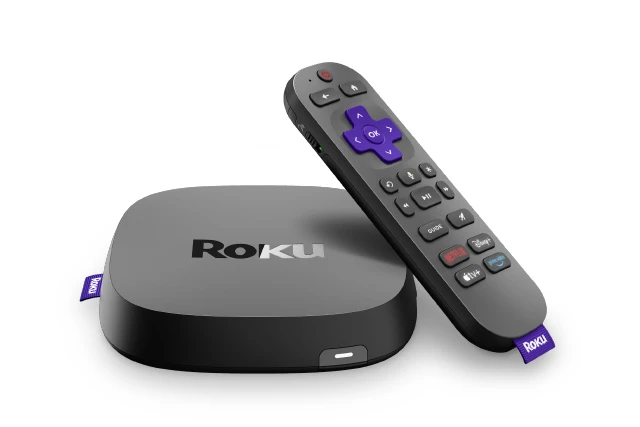
Roku does not use Android APK files. Instead, install a compatible Roku app and connect your subscription through that player's playlist system.

Hot Player
Hot Player is our recommended media player for Roku. Install it from the Roku Store and connect your Xtreme HD IPTV playlist using the device information displayed by the app.
View Installation Steps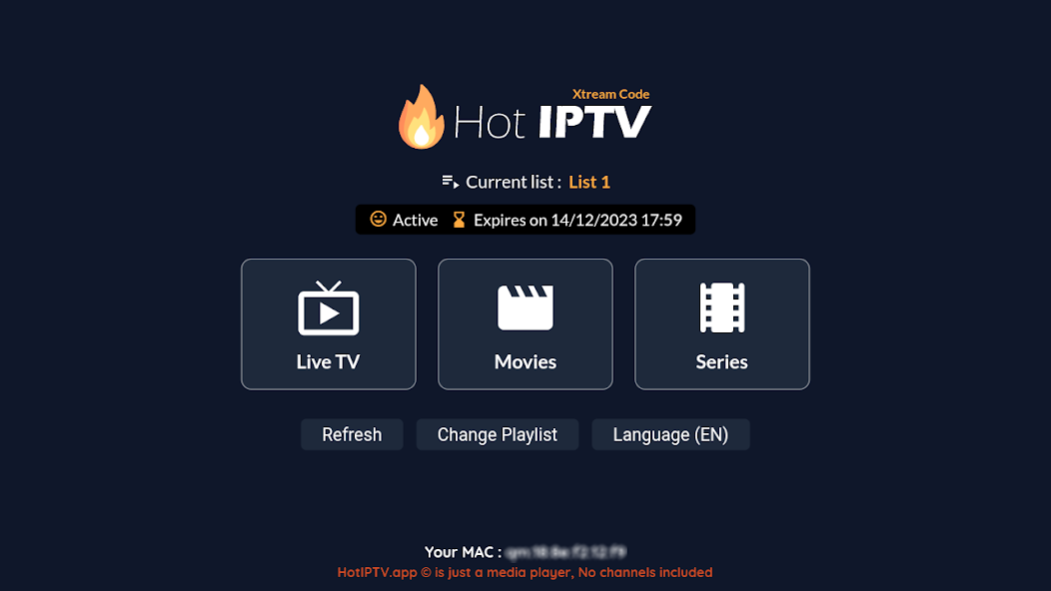
Install Xtreme HD IPTV on Roku
Complete the steps below in order. You will use your Roku first, then a phone or computer to connect the playlist to Hot Player.
Open the Roku Store
From the Roku home screen, open the Roku Store or use the Roku search feature.
Search for Hot Player
Search for Hot Player, select the application and install it on your Roku device.
Open Hot Player
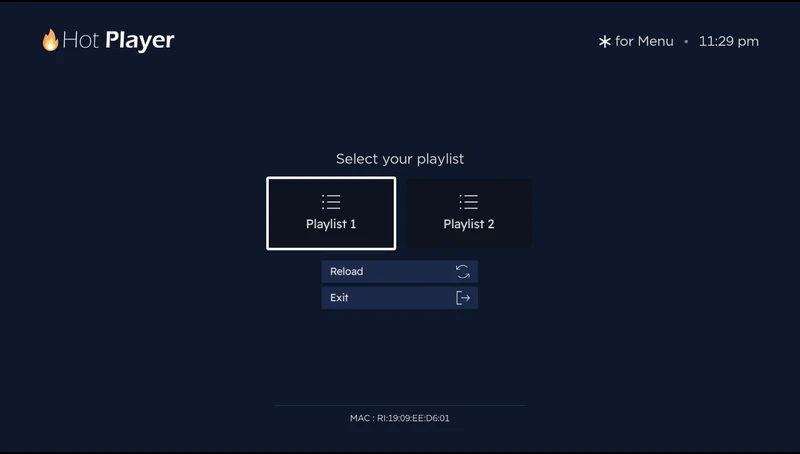
Launch Hot Player once installation is complete. The application will display the device information required to connect your playlist.
Find the Device MAC Address
Note the MAC Address or device information displayed by Hot Player.
You will enter this information on the Hot Player website from your phone, tablet or computer.
Open the Hot Player Upload Page
On another device such as your phone or computer, open the official Hot Player playlist page:
Enter Your Roku Hot Player Device Information
Enter the MAC Address shown inside Hot Player. Check the characters carefully before proceeding.
Add Your Xtreme HD IPTV Playlist
Add a new playlist using the subscription information provided to you after purchase.
If you received an M3U URL, paste the complete URL into the appropriate playlist field.
Save the Playlist
Save the configuration on the Hot Player website after confirming that your information is correct.
Return to Roku and Reload Hot Player
Return to your Roku device. Restart Hot Player or use its available reload option so the newly added playlist can synchronize.
Start Using Xtreme HD IPTV
Once synchronization is complete, use your Roku remote to browse the content available with your subscription.
Connect Hot Player to Your Subscription
Use Hot Player's official upload page to link the player installed on your Roku with the playlist information supplied with your subscription.
Enter Your MAC Address
Use the exact device information displayed inside Hot Player on your Roku.
Open Upload PageM3U or Xtream?
Use whichever compatible login information was supplied with your Xtreme HD IPTV subscription.
M3U Playlist URL
If you received a complete M3U URL, select the appropriate playlist option and paste the URL exactly as provided.
Xtream Login
Where the Hot Player interface supports it, you can use compatible Xtream information such as your server address, username and password.
Roku Setup Notes
Roku is not Android
You do not install the Xtreme HD IPTV Android APK on Roku. Use a Roku-compatible media player from the Roku Store instead.
Hot Player is a player
Hot Player is used to connect and display compatible playlist information. It is separate from your Xtreme HD IPTV subscription.
Subscription details are private
Your account or playlist information is supplied separately after purchase and should not be shared publicly.
Reload after changes
If you modify a playlist on the Hot Player website, restart or refresh the Roku app so it can retrieve the latest configuration.
Xtreme HD IPTV Roku Questions
Common questions about setting up Xtreme HD IPTV with Hot Player on Roku.
Can I use Xtreme HD IPTV on Roku?
What app should I use on Roku?
Can I install the Android APK on Roku?
How do I add my playlist to Hot Player?
Where do I get my M3U URL?
Why isn't my playlist appearing?
Does Hot Player include channels?
Using a Different Device?
Explore setup instructions for Firestick, Android TV, Samsung TV, LG TV, iPhone, iPad, Apple TV, Windows, Mac and other supported platforms.
View All App Guides