
01 · IMPORT
Start with your playlist
Drop in an M3U file or paste a direct playlist URL. The editor supports up to 100,000 channel entries.
Turn a long playlist into a list you want to watch. Import your M3U, choose groups and channels, then download your edited playlist.
 Drop your playlist hereUTF-8 M3U or M3U8 text files · up to 25 MB
Use a direct HTTPS playlist link. Redirects, private IP URLs and local host names are blocked. If import fails, download the playlist and use Upload file.
Files stay on your device. Only M3U/M3U8 text playlists are accepted. URL imports contact the playlist provider directly.
Import a playlist to open the editor. Your original file will stay unchanged.
Imported playlist
Your download includes every checked channel across all groups. Sorting also sets the export order.
Drop in an M3U file or paste a direct playlist URL. The editor supports up to 100,000 channel entries.
Browse groups, search channels and untick what you do not need. Edit channel names or rename a whole group.
Save your selected channels as an M3U file. Your original source and subscription settings are unchanged.
The Xtreme HD IPTV M3U Playlist Editor helps you organize an existing IPTV channel list without editing the playlist text by hand. It is part of our free IPTV tools, designed to help you prepare your playlist and check your streaming setup.
Import an M3U or M3U8 channel playlist, browse its groups and choose the channels you want to keep. You can rename channels, update groups and export a smaller playlist. File imports and edits run in your browser, while URL imports request the playlist directly from its provider.
Once you have downloaded your edited playlist, follow our IPTV app and device setup guides to configure a compatible player. Keep your original playlist as a backup and check that your player supports local M3U files before replacing a working setup.
A tidy playlist helps you find channels, but playback also depends on your connection. Use the IPTV Speed Calculator to estimate a suitable streaming quality, or the IPTV Cost Savings Calculator to compare your current TV costs with a plan using your own prices.
Visit Xtreme HD IPTV to explore the service, or view our IPTV subscription plans. Editing a playlist changes your downloaded channel list; it does not add channels, activate a subscription or increase the connections included in your plan.
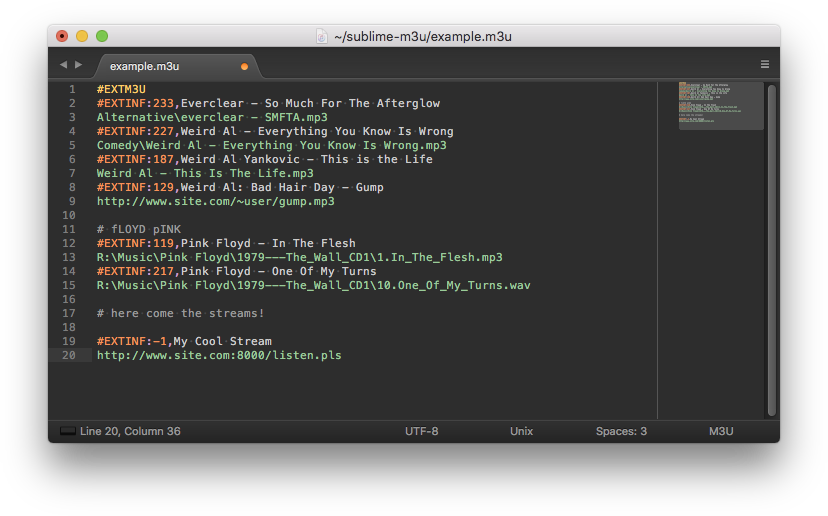
Learn how imports, group selection and exports work before replacing a working playlist.
You can import an extended M3U or M3U8 channel playlist, browse its groups, search for channels and choose which entries to keep. The editor also lets you rename individual channels, move them to another group, rename an entire group and choose the channel order.
Your changes are applied to a newly downloaded M3U file. The tool does not alter the source file, activate a subscription or add channels you do not already have. It is one of our free IPTV tools for preparing your streaming setup.
Only files with an M3U or M3U8 extension are accepted. They must contain valid UTF-8 text and an extended playlist header. The editor checks file type, suspicious filenames, binary or script content, overall size and unusually long lines before using the playlist.
The limit is 25 MB and 100,000 channel entries. Archives and executable files are not supported, even if renamed. HLS video segment or quality-variant playlists are also a different format; a normal channel entry can still point to an M3U8 stream URL. If import fails, use a fresh channel-list export from your provider.
File imports are read and processed in your browser. This editor does not upload those files to WordPress or save them to our server. Imported channel names and groups are rendered as text; the tool does not play stream links or load channel-logo URLs from your playlist.
A URL import is different: your browser requests the playlist directly from its provider, which can see your IP address and request URL. Playlists can include account details, so keep downloaded copies private. Close or reset the tab when finished, and do not share a playlist containing your credentials.
The provider must allow a cross-origin browser request. Some services block it, require cookies, redirect the download or only offer an HTTP link. The editor accepts direct HTTPS links, omits cookies and blocks redirects, embedded HTTP login credentials, private IP URLs and common local host names.
If the URL fails, download the playlist through your provider’s normal process and use Upload file. There is no server proxy in this tool. A blocked import does not necessarily mean that your subscription or stream URLs are invalid.
All imported channels are included initially. A group checkbox includes or excludes the channels in that group, and clicking its name displays the group. Channel search narrows the visible matches; Include matches and Exclude matches apply to every matching entry, including results on other pages.
The download includes every checked channel across all groups, not just the entries currently visible. Sorting sets the exported order. Watch the included count before downloading, and use Undo last change if you accidentally exclude a group or change a name.
For supported channel playlists, existing stream links, EPG identifiers, logo attributes and per-entry options are retained. The editable fields are channel name and group, plus inclusion and ordering. Unsafe or unsupported stream schemes are excluded, and incomplete entries are reported rather than silently treated as valid channels.
An edited channel name does not automatically change its EPG ID or repair missing programme data. Keep a backup and test the exported list in your player. Our IPTV app guides can help you check device and player compatibility.
Download your selected channels, then import the new M3U file into a player that supports local playlists. Some apps accept only an M3U URL or Xtream Codes login, so check the app’s supported import methods. If the original provider changes channels later, re-import its updated list and create a fresh edited copy.
Removing unwanted channels can make your list easier to browse, but it does not increase your internet speed or guarantee smoother streams. Use the IPTV Speed Calculator to check bandwidth, or the cost savings calculator to review your TV budget.