
Set Up Xtreme HD IPTV on Formuler Box
Connect your Xtreme HD IPTV subscription to a Formuler device using MyTVOnline. Follow the correct setup for XC, M3U or MAC-ID and start using your subscription directly from your box.

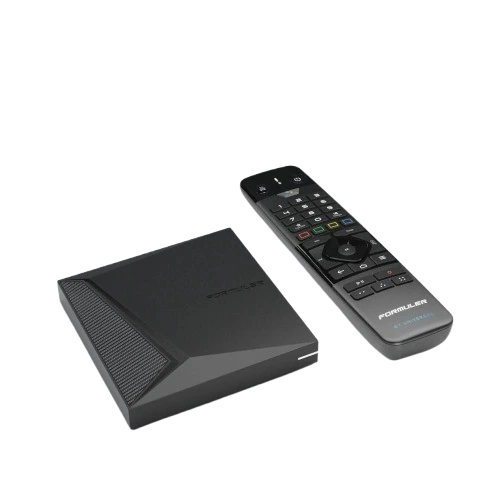
MyTVOnline for Formuler
MyTVOnline is designed for Formuler devices and gives you several ways to connect your subscription.

MyTVOnline
Open MyTVOnline directly on your Formuler box and add the connection information supplied with your Xtreme HD IPTV subscription.
View Setup Instructions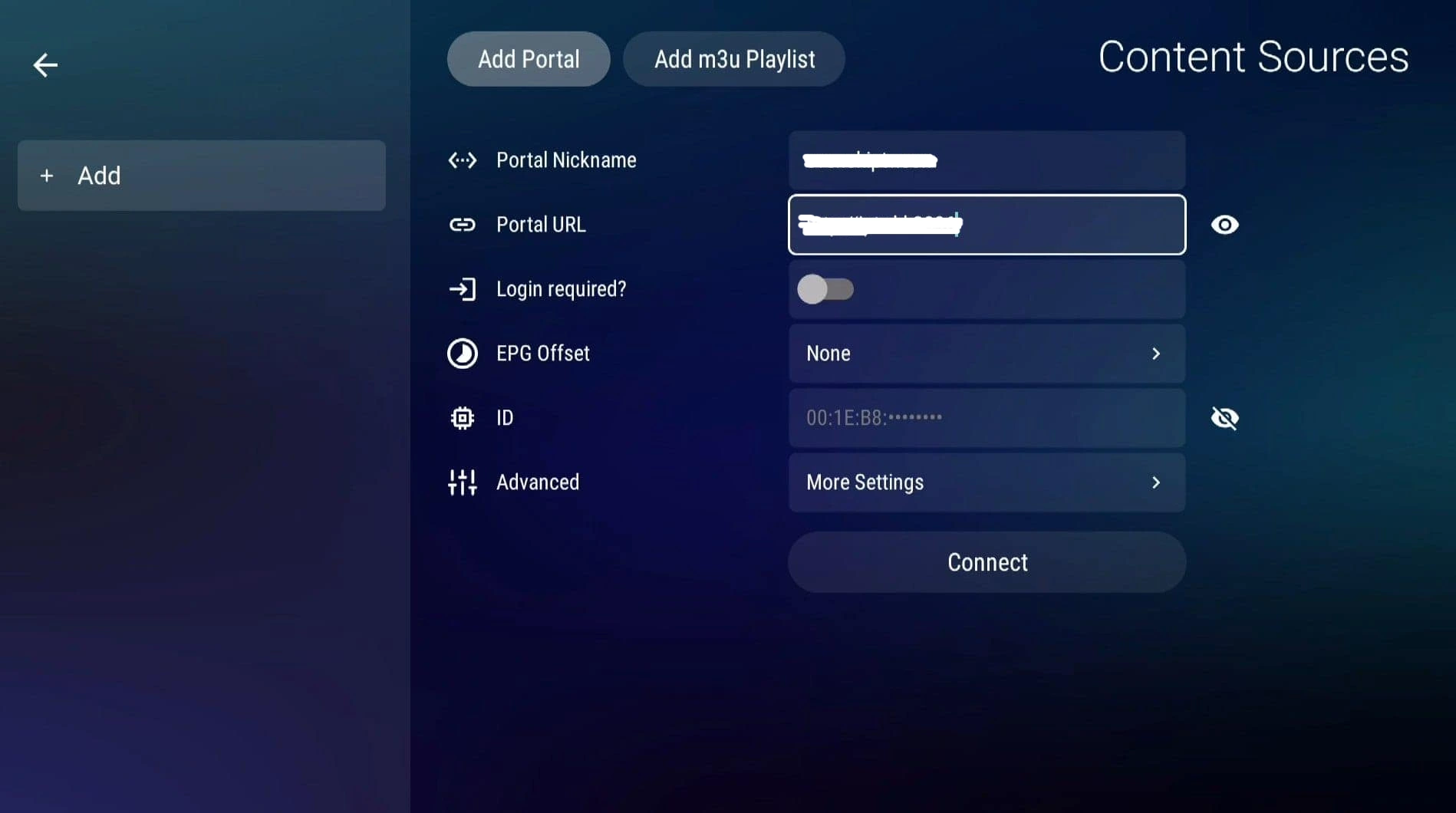
Formuler Setup at a Glance
The entire setup comes down to four simple stages.
Open MyTVOnline
Launch the built-in app on your Formuler device.
Add a Source
Open Connections or Content Sources.
Enter Credentials
Add your XC, M3U or MAC-ID details.
Connect
Save the source and let MyTVOnline load it.
Where to Add Your Connection
The exact menu differs depending on which version of MyTVOnline your Formuler box uses.
How to Connect Xtreme HD IPTV to MyTVOnline
Follow these steps using the connection details supplied with your subscription.
Connect Your Formuler Box to the Internet
Turn on the device and confirm that it is connected through Wi-Fi or Ethernet.
Open MyTVOnline
From the Formuler home screen, launch the MyTVOnline application.
Open Connections or Content Sources
Use the correct menu path for your version of MyTVOnline.
MyTVOnline 3: Menu → Content Manager → Content Sources
MyTVOnline 4: Menu → Settings → App Settings → Content Sources
Add a New Connection
Select the option to add a portal, playlist, or content source.
Choose XC, M3U or MAC-ID
Select whichever connection type matches the information provided with your subscription.
Enter Your Subscription Information
Type the details exactly as they were provided to you after purchase.
M3U: M3U Playlist URL
MAC-ID: Device MAC-ID + Portal URL
Give the Connection a Name
When MyTVOnline asks for a nickname or portal name, you can use:
Connect and Let MyTVOnline Load
Save the connection. MyTVOnline will connect and retrieve the available playlist information.
Start Using Your Subscription
Once loading is complete, use your Formuler remote to navigate the available content through MyTVOnline.
XC, M3U or MAC-ID?
MyTVOnline supports several connection methods. Use the one that matches the credentials you received.
XC Login
A convenient option when you received separate account credentials.
M3U Playlist
Select this method if you received a complete playlist URL.
MAC-ID Portal
Use this if your service is configured using your Formuler device's MAC-ID.
Before You Troubleshoot
Check the connection type
Make sure you selected XC, M3U or MAC-ID based on the credentials you actually received.
Verify every character
Incorrect capitalization, missing characters, or a typo in the URL can prevent the login from working.
MyTVOnline versions differ
Menu locations change between MyTVOnline 2, 3 and 4, but all versions provide a way to manage content sources.
Formuler is the device manufacturer
The device and MyTVOnline app do not supply your subscription. Your login information is provided separately after purchase.
Xtreme HD IPTV Formuler Box FAQ
Common questions about using MyTVOnline on a Formuler device.
What app should I use on a Formuler Box?
Does MyTVOnline support XC login?
Can I use an M3U URL on Formuler?
What is MAC-ID setup?
Where do I add my portal in MyTVOnline 3?
Where do I get my portal URL?
Why won't MyTVOnline connect?
Does Formuler or MyTVOnline include a subscription?
Need Setup Instructions for Another Device?
Explore our guides for Firestick, Android TV, Samsung TV, LG TV, Roku, Formuler Box, Apple devices, Windows, Mac and other supported platforms.
View All App Guides