
How to Set Up Xtreme HD IPTV on LG Smart TV
Learn how to watch Xtreme HD IPTV on an LG Smart TV using Hot Player. This tutorial shows you how to install Hot Player, find your TV's MAC Address, upload your Xtreme HD IPTV playlist and start watching.

Use Hot Player on LG Smart TV
Our recommended IPTV player for compatible LG Smart TVs is Hot Player.
Instead of installing an Android APK on LG webOS, install Hot Player directly from your LG TV's app store and connect your Xtreme HD IPTV playlist to it.
Visit Official Hot Player WebsiteWhat You Need Before Starting
Have these items ready before connecting Xtreme HD IPTV to Hot Player on your LG Smart TV.
LG Smart TV
A compatible LG Smart TV connected to a stable internet connection.
Hot Player
Install Hot Player from the app store available on your LG Smart TV.
Xtreme HD IPTV Playlist
Have the M3U playlist URL provided with your Xtreme HD IPTV subscription ready.
Install Hot Player on LG Smart TV
Follow these steps to add your Xtreme HD IPTV subscription to Hot Player.
Open the LG Apps Store
From the home screen of your LG Smart TV, open the app store and use the search option.
Search for:
Install and Open Hot Player
Select Hot Player from the search results and install the application on your LG Smart TV.
Once installation finishes, open the app.
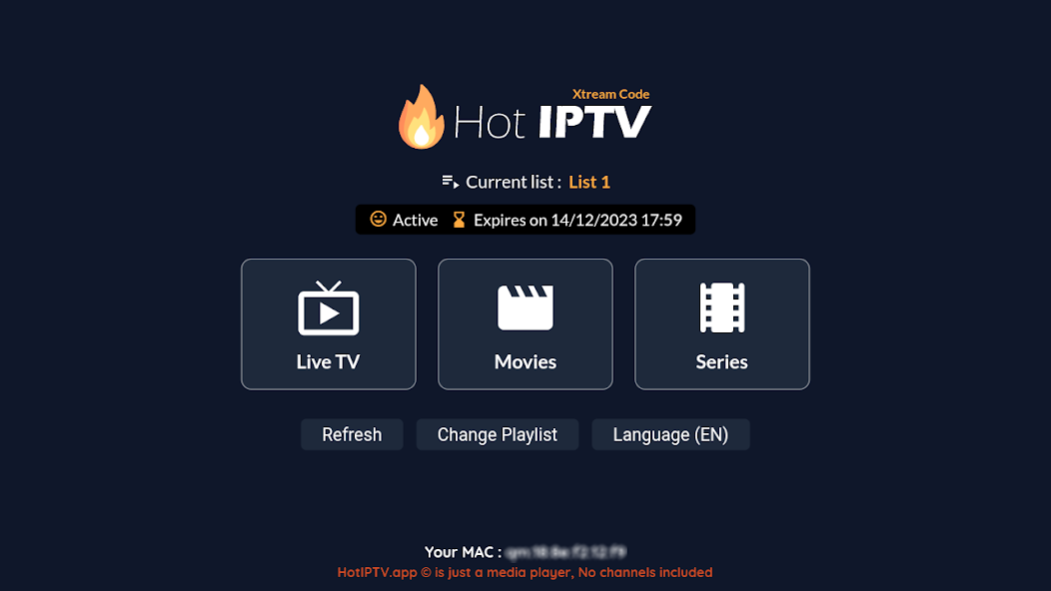
Find Your Hot Player MAC Address
Hot Player will display the MAC Address associated with the application on your television.
You will use this MAC Address to connect your playlist through the Hot Player website.
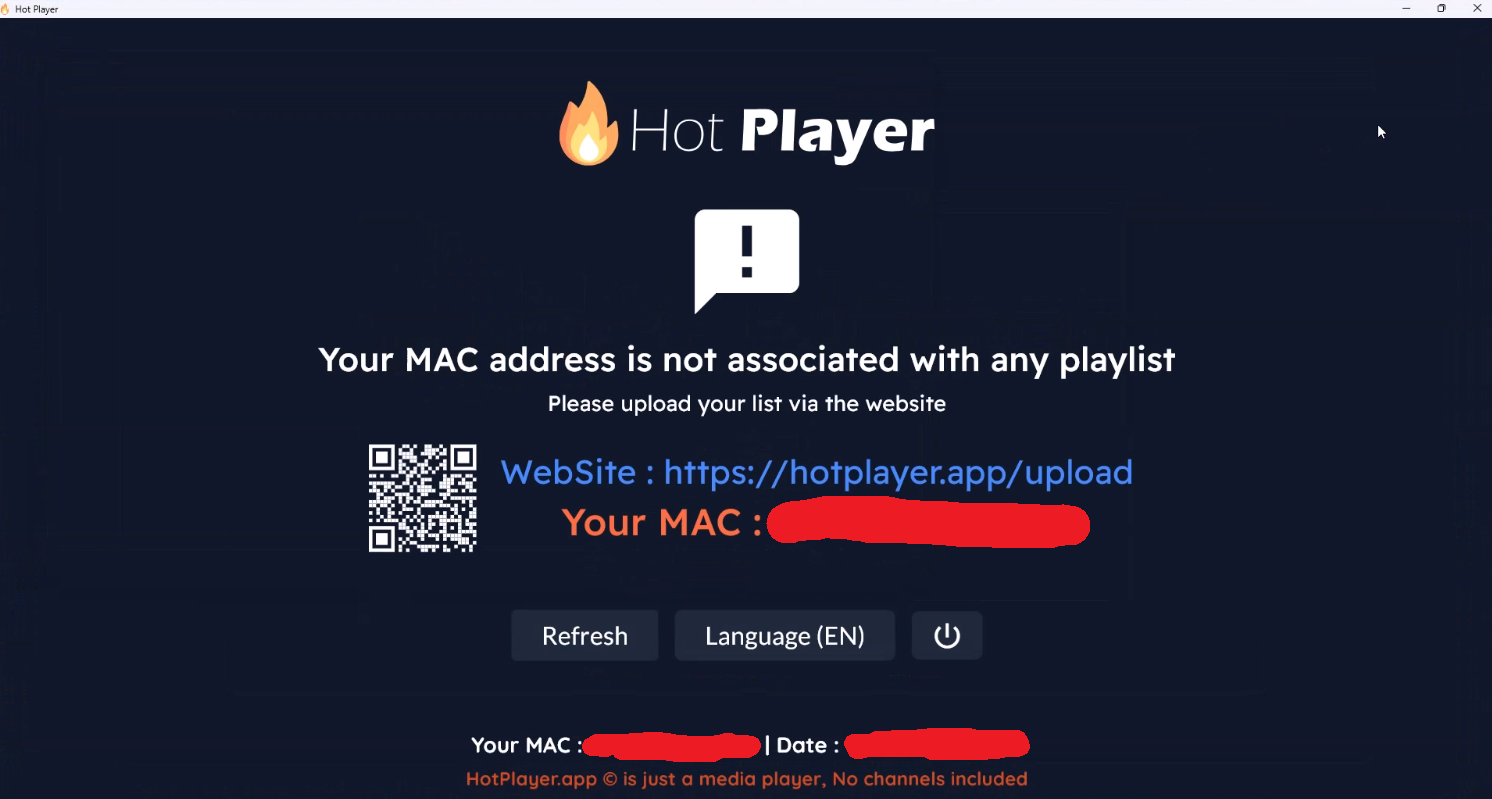
Open the Hot Player Upload Page
On your phone, tablet or computer, open the official Hot Player playlist upload page.
https://hotplayer.app/upload
Enter Your MAC Address
Enter the same MAC Address shown inside the Hot Player app on your LG TV.
Double-check the characters before continuing to the playlist configuration screen.
Add Your Xtreme HD IPTV Playlist
Add a new playlist and paste the M3U URL provided with your Xtreme HD IPTV subscription.
Save the Playlist
Save or submit the playlist from the Hot Player website after entering the correct information.
Once the playlist has been saved successfully, return to your LG Smart TV.
Restart Hot Player
Close and reopen Hot Player on your LG Smart TV, or use the refresh option if one is displayed.
The app should then retrieve the playlist linked to your MAC Address.
Start Using Xtreme HD IPTV
After your playlist loads, use your LG TV remote to browse the available content included with your Xtreme HD IPTV subscription.
Hot Player Upload Page
Enter the MAC Address shown in Hot Player and add your Xtreme HD IPTV playlist through the official Hot Player website.
Xtreme HD IPTV Is Now Set Up on Your LG TV
Once the playlist loads successfully in Hot Player, you can use the television remote to navigate your Xtreme HD IPTV subscription.
- Browse available live TV channels
- Access movies and on-demand content
- Browse available TV series
- Search for available content
- Save favorites where supported by the player
Important Information About Hot Player
Hot Player acts as the media player used to load your subscription on your LG Smart TV.
Hot Player Is the Player
Hot Player does not replace your Xtreme HD IPTV subscription. The application is used to load and display your playlist on your LG TV.
Keep Your M3U URL Private
Your playlist URL may contain information linked to your account, so do not share it publicly.
Use Your TV's MAC Address
Always enter the MAC Address displayed inside your own Hot Player installation when managing the playlist.
Xtreme HD IPTV LG Smart TV FAQ
Common questions about using Xtreme HD IPTV with Hot Player on LG Smart TVs.
What app should I use for Xtreme HD IPTV on LG Smart TV?
Can I install the Xtreme HD IPTV APK on an LG Smart TV?
Where do I find my Hot Player MAC Address?
Where do I upload my Xtreme HD IPTV playlist?
What playlist information do I need?
Why is my playlist not appearing on LG TV?
Does Hot Player include channels?
Need Help With Another Device?
Explore our Xtreme HD IPTV App center for Firestick, Android TV, Samsung TV, LG TV and other device setup instructions.
View All Xtreme HD IPTV App Guides