
How to Set Up Xtreme HD IPTV on MAG Box
Connect your MAG box to Xtreme HD IPTV using the device MAC address and the portal URL supplied with your subscription. Follow the steps below to configure your MAG device correctly.
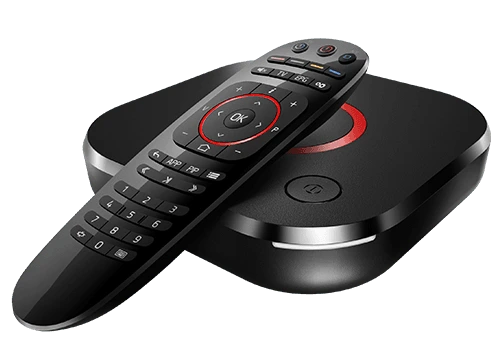
MAG Box Setup Is Different from an IPTV App
Instead of installing an IPTV player and entering a username and password, compatible MAG devices commonly connect directly to an IPTV portal.
Find Your MAC Address
Locate the MAG device MAC address used to identify your box.
Get Your Portal URL
Your portal information is supplied with your subscription setup details.
Connect the Portal
Enter the portal URL in your MAG settings and restart the portal.
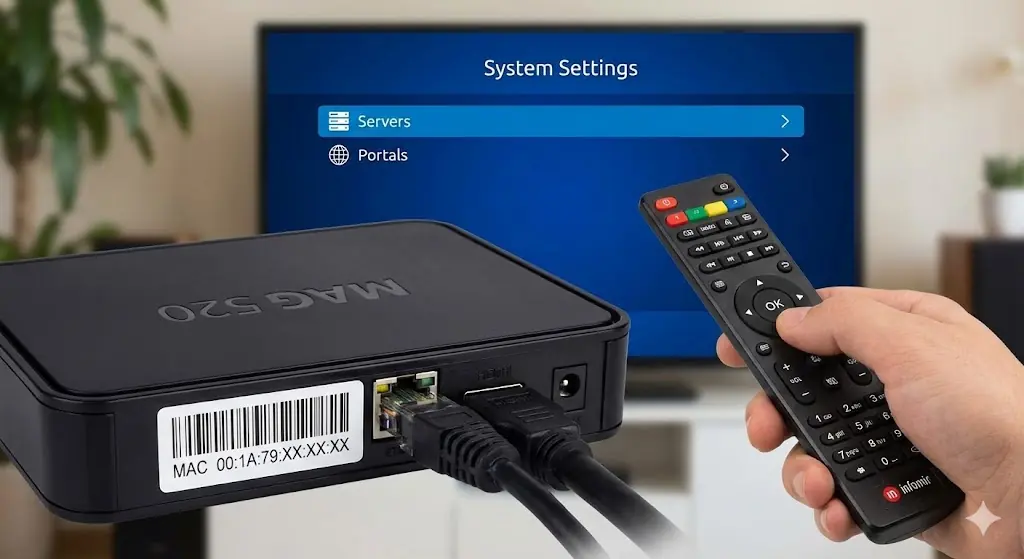
Find Your MAG Box MAC Address
Your MAG device has a MAC address that can be used to identify the box when a portal-based subscription is configured.
You may find the MAC address in the device information, on the device label, or within the MAG interface, depending on your model.
What You Need for MAG Box Setup
MAG Box
Your compatible MAG set-top box should be connected to your television and internet connection.
MAC Address
Note the MAC address displayed by your MAG device or printed on the device label.
Portal URL
Use the MAG portal URL supplied with your Xtreme HD IPTV subscription setup information.
Configure the Portal on Your MAG Box
The exact appearance can vary slightly by MAG model and firmware, but compatible Infomir MAG boxes use the following general portal configuration process.
Turn On Your MAG Box
Connect the MAG device to your TV and make sure it has an active internet connection.
Open System Settings
Open the embedded MAG interface and enter System Settings.
Open Servers
Inside System Settings, select Servers.
Select Portals
Inside the Servers menu, open Portals.
Enter a Portal Name
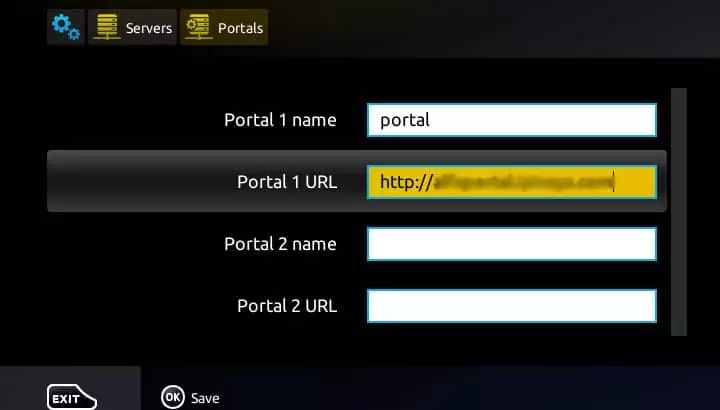
In the Portal 1 Name field, enter a recognizable name for the connection.
Enter the Portal URL
In the Portal 1 URL field, enter the portal address supplied with your subscription.
Enter the URL exactly as provided, including any port number or path when applicable.
Save the Portal Settings
Save or confirm your portal configuration using the MAG remote.
Restart the Portal or MAG Box
Restart the portal or reboot the MAG device so it can connect using the new configuration.
Wait for the Portal to Load
If the portal URL and device information are configured correctly, the portal should begin loading.
Loading time can vary depending on the device, network connection and portal.
Where the Portal URL Goes
Compatible MAG devices provide Portal 1 and, on some firmware, Portal 2 fields under the Servers section.
For your main setup, use the portal name and portal URL supplied for your subscription.
System Settings → Servers → Portals
Before Troubleshooting Your MAG Box
Check the MAC address
Make sure the MAC address associated with your setup matches the MAC address displayed by your MAG device.
Enter the URL exactly
Portal URLs can contain a domain, port, and path. Missing even one character can prevent the portal from loading.
Portal menus can vary
MAG models and firmware versions can look slightly different. Some customized firmware can also hide or restrict the Portals menu.
No Android app is required
Traditional Linux-based MAG setup uses the device portal configuration rather than installing the Android Xtreme HD IPTV APK.
Xtreme HD IPTV MAG Box Questions
Common questions about setting up a MAG device using a portal URL.
How do I set up Xtreme HD IPTV on a MAG Box?
Do MAG boxes use a username and password?
Where can I find the MAG Box MAC address?
Where do I enter the portal URL on MAG?
What should I enter as the portal name?
Where do I get my MAG portal URL?
Why is my MAG portal not loading?
Why don't I see the Portals menu?
Setting Up Another Device?
Explore setup instructions for Firestick, Android TV, Samsung TV, LG TV, Roku, Formuler Box, MAG Box, Apple devices, Windows, Mac and more.
View All App Guides