
How to Set Up Xtreme HD IPTV on Windows & Mac
Follow the correct setup for your computer. We recommend Smarters Pro for Windows PCs and UHF – Love your IPTV for compatible Mac computers. Connect using the account credentials or playlist information supplied with your Xtreme HD IPTV subscription.
Choose Your Computer
Installation differs between Windows and macOS. Select the guide for your operating system.

Windows PC
Smarters Pro
Install the dedicated Windows version of Smarters Pro and connect your Xtreme HD IPTV subscription using the account information provided after purchase.
Windows Instructions
Mac
UHF – Love your IPTV
Install UHF on a compatible Mac and connect your Xtreme HD IPTV subscription using Xtream credentials or an M3U/M3U8 playlist.
Mac InstructionsWhat You Need Before Starting
Have your computer, internet connection and Xtreme HD IPTV subscription details ready.
Windows PC or Mac
Follow the corresponding setup guide below depending on the operating system installed on your computer.
Internet Connection
Connect your computer to a stable Wi-Fi or Ethernet connection before loading your subscription.
Subscription Credentials
Your username, password, server URL or M3U playlist information is provided after purchasing a subscription.
Xtreme HD IPTV on Windows
Smarters Pro is our recommended IPTV player for Windows desktop and laptop computers. Install the Windows application and connect your Xtreme HD IPTV subscription using the account details provided after purchase.
Start Windows Setup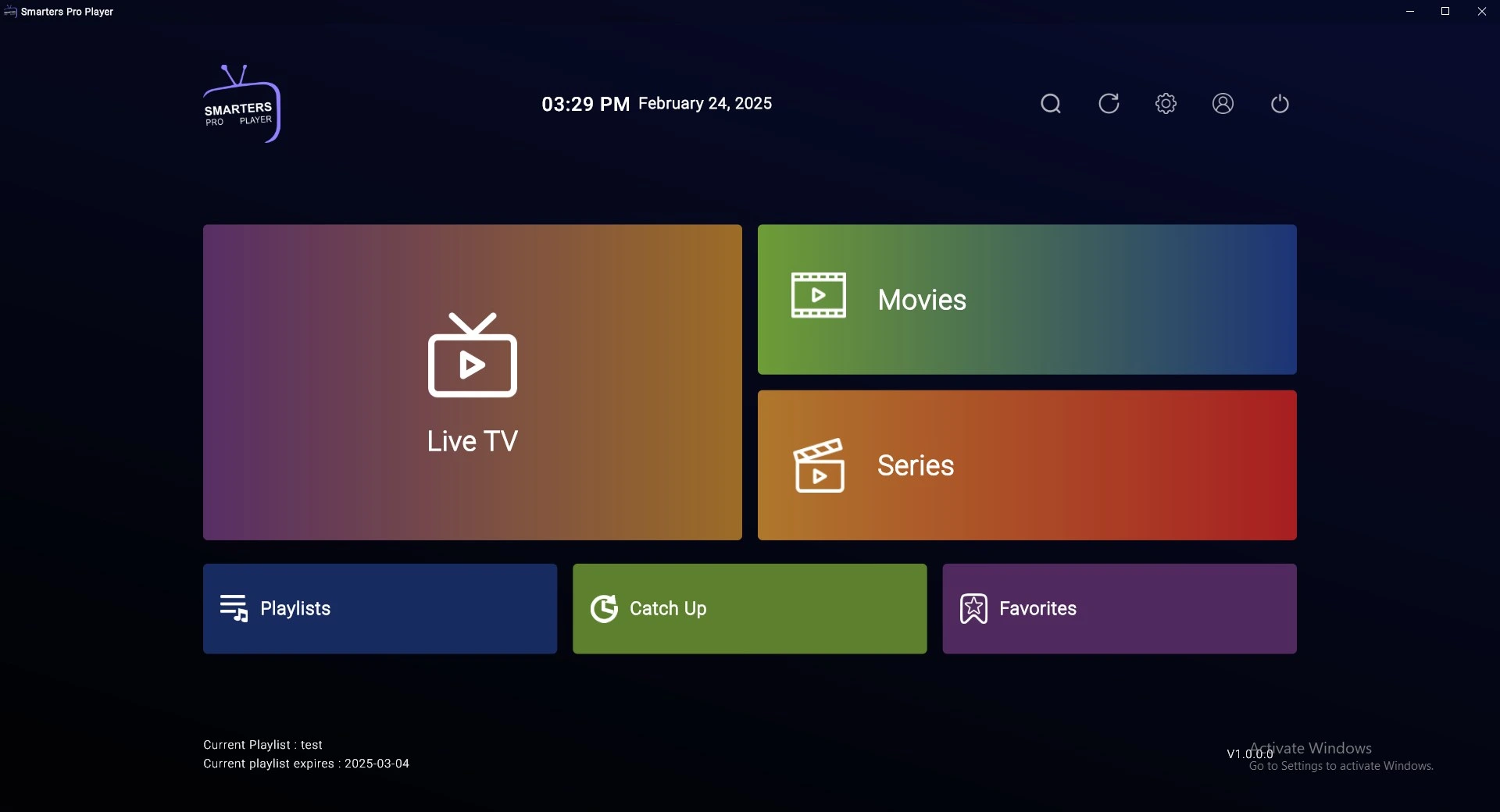
Open the Official Smarters Pro Website
Open your web browser on your Windows computer and visit the official Smarters Pro website.
https://www.smarterspro.com/
Download Smarters Pro for Windows
Find the Windows download option on the Smarters Pro website and download the Windows setup file.
The Windows desktop application is installed using the downloaded setup file.
Install Smarters Pro
Open the downloaded setup file and follow the installation prompts shown by Windows.
Open Smarters Pro
Once installation is finished, open Smarters Pro from your Windows Start menu or desktop shortcut.
Enter Your Xtreme HD IPTV Account
Select the account or Xtream-style login option and enter the subscription information provided to you after purchase.
Use Your M3U URL if Needed
If your setup uses an M3U playlist rather than a username and password, select the playlist option and enter the M3U URL provided with your subscription.
Load Your Subscription
Save your account information and allow Smarters Pro to retrieve and organize your playlist information.
Start Using Xtreme HD IPTV on Windows
Once loading is complete, use the Smarters Pro interface to browse the content available with your subscription.
Xtreme HD IPTV on Mac
UHF – Love your IPTV is our recommended player for compatible Mac computers. It offers a clean, Apple-focused interface and lets you connect your Xtreme HD IPTV subscription using Xtream credentials or an M3U/M3U8 playlist.
Start Mac Setup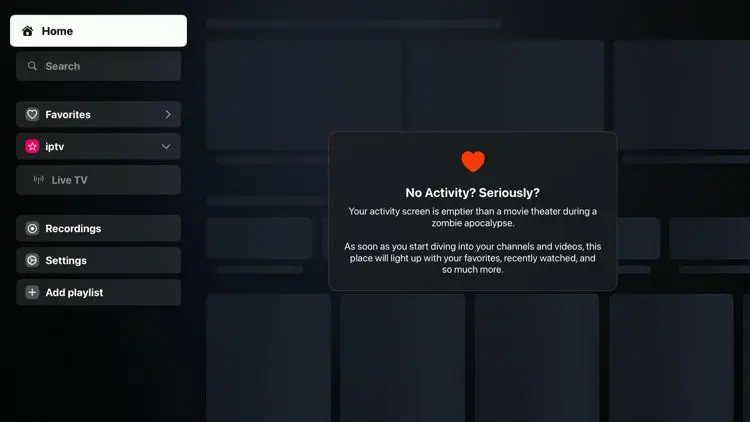
Open the Mac App Store
Open the App Store on your Mac and search for:
You can also visit the official UHF website:
Install UHF
Install UHF through the Mac App Store on your compatible Mac.
Open the application once installation is complete.
Add a New Playlist
Inside UHF, choose the option to add a new playlist or account.
Choose Xtream or M3U
Depending on the credentials supplied with your Xtreme HD IPTV subscription, choose an Xtream-style account or M3U playlist.
Enter Your Xtream Credentials
Enter the account information supplied with your subscription.
Or Add Your M3U Playlist
If you received an M3U playlist URL, select the appropriate playlist option and paste the full URL exactly as supplied.
Save and Synchronize
Save the playlist and allow UHF to retrieve and organize the available playlist information.
Start Using Xtreme HD IPTV on Mac
Once synchronization is complete, use the UHF interface to browse the content available with your subscription.
Which Login Method Should You Use?
Your exact credentials are supplied after purchasing an Xtreme HD IPTV subscription.
Username + Password + Server URL
Choose the Xtream or account login method when your subscription contains a username, password and server or portal URL.
M3U / M3U8 Playlist
Choose the playlist URL method if your subscription includes a complete M3U or M3U8 playlist address.
Windows vs Mac Setup
The Xtreme HD IPTV account information is similar, but the recommended application and installation method differ between Windows and macOS.
| Setup | Windows | Mac |
|---|---|---|
| Recommended Player | Smarters Pro | UHF – Love your IPTV |
| Installation | Windows desktop installer | Mac App Store |
| Account Login | Username / Password / Server | Xtream |
| Playlist URL | M3U where supported | M3U / M3U8 |
| Subscription Credentials | Provided after purchase | Provided after purchase |
About the Recommended Players
Smarters Pro and UHF are player applications used to connect compatible IPTV subscription information.
Windows: Smarters Pro
Smarters Pro offers a desktop interface designed for Windows computers and is our recommended Windows player.
Mac: UHF
UHF is designed for Apple platforms and supports compatible Xtream and playlist-based connections.
Your Subscription Is Separate
Smarters Pro and UHF are media players. Your Xtreme HD IPTV subscription information is supplied separately after purchase.
Xtreme HD IPTV Windows & Mac FAQ
Common questions about setting up Xtreme HD IPTV on Windows PCs and Mac computers.
What is the recommended IPTV app for Windows?
What is the recommended IPTV app for Mac?
How do I install Smarters Pro on Windows?
How do I install UHF on Mac?
Where do I get my username and password?
Can I use an M3U URL on Windows or Mac?
Are Smarters Pro and UHF IPTV providers?
Setting Up Another Device?
Visit our Xtreme HD IPTV App center for setup instructions for Firestick, Android TV, Samsung TV, LG TV, Apple devices, Windows, Mac and other compatible platforms.
View All Xtreme HD IPTV App Guides