

Most new IPTV users make the same mistake.
They receive their IPTV login details by email, open the message, stare at the information for a few seconds, and immediately feel confused.
I know because I’ve seen it happen countless times.
The email contains several things:
- Username
- Password
- Portal URL
- M3U URL
And the first thought that crosses their mind is usually:
“Why do I need all of this?”
Or even worse:
“Which one am I supposed to use?”
If you’re asking these questions, don’t worry.
You’re not alone.
In fact, one of the most common support questions among new IPTV users has nothing to do with buffering, channel availability, or device compatibility.
It’s simply:
“What is my M3U URL and how do I use it?”
The good news?
The answer is much simpler than most people think.
By the end of this guide, you’ll understand:
- What an M3U URL is
- Why Xtreme HD IPTV provides it
- How it differs from a Portal URL
- Whether you should use M3U or Xtream Codes login
- How to set it up on Firestick, Android TV, Smart TVs, and other devices
- Common mistakes beginners make
Let’s begin.
What Is an M3U URL?
The term “M3U URL” sounds far more complicated than it actually is.
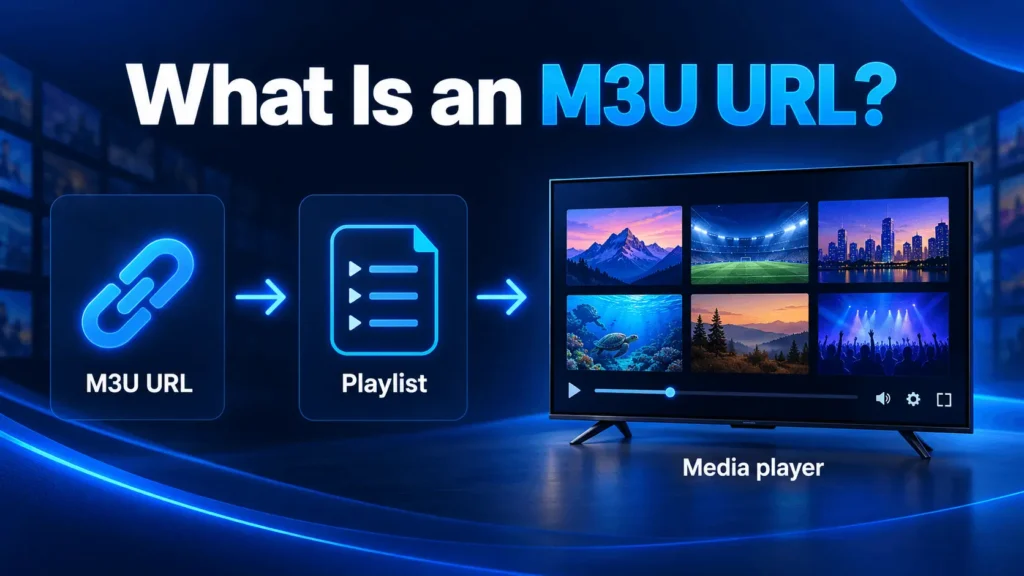
At its core, an M3U URL is simply a playlist link.
Think of it like a giant digital menu.
Instead of containing food items, it contains information about:
- Live TV channels
- Sports channels
- Movies
- TV shows
- Video On Demand content
When you import an M3U URL into an IPTV player such as:
- IPTV Smarters Pro
- TiviMate
- Hot Player
- XCIPTV
- VLC Media Player
- Perfect Player
The application reads that playlist and displays all the available content inside the app.
In other words…
The M3U URL tells your IPTV player where to find the channels and content included in your subscription.
Without the playlist, your IPTV player has nothing to display.
A Simple Example
Imagine you walk into a huge library.
Thousands of books.
Millions of pages.
But there’s one problem.
Nothing is organized.
No categories.
No labels.
No directory.
Finding a single book would be nearly impossible.
The M3U URL acts like the library directory.
It tells the IPTV player:
- Where channels are located
- Which categories they belong to
- Which streams should be displayed
That’s why the playlist is so important.
Without it, your IPTV player wouldn’t know where to begin.
Why Does Xtreme HD IPTV Provide an M3U URL?
This is where many beginners get confused.
They assume the M3U URL is the only way to access their IPTV service.
That’s not true.
When someone purchases a subscription from Xtreme HD IPTV, they typically receive several pieces of information after their order has been processed.
These details are sent directly to their email.
The email usually contains:
Username
Your unique account identifier.
Password
Used to authenticate your account.
Portal URL
The server address used to connect your IPTV player.
M3U URL
A playlist link that contains the channels and content associated with your subscription.
But why provide multiple login methods?
The answer is simple.
Different IPTV applications support different login methods.
Some applications work best using:
- Username
- Password
- Portal URL
Others support:
- M3U Playlist URLs
Rather than limiting subscribers to a single setup option, Xtreme HD IPTV provides multiple methods so users can choose whichever one works best for their preferred device or IPTV player.
And honestly…
This flexibility is one of the reasons IPTV has become so popular.
Unlike traditional cable television, IPTV gives users much more control over how they access their content.
What Information Is Included in an M3U URL?
A lot more than you might think.
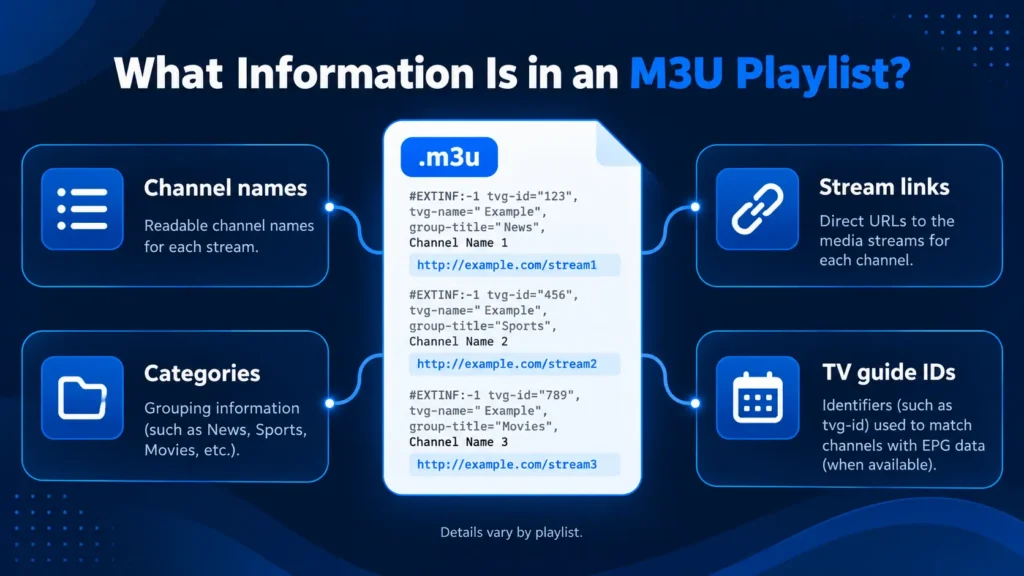
When most people see an M3U URL, it looks like a long and confusing web address.
Something similar to:
example.com/get.php?username=xxxxx&password=xxxxx&type=m3u
To the average person, this looks like random text.
But every part serves a purpose.
The URL typically contains information that allows the IPTV application to:
- Authenticate your account
- Retrieve channel lists
- Access VOD content
- Load available categories
- Display available streams
The IPTV player then processes this information and organizes everything into a user-friendly interface.
This is why entering the wrong M3U URL usually results in:
- Missing channels
- Playlist errors
- Login failures
- Empty categories
The player can only display what it receives from the playlist.
M3U URL vs Portal URL: What’s the Difference?

This is probably the most misunderstood topic among IPTV beginners.
People often confuse the Portal URL with the M3U URL.
The truth?
They’re related.
But they’re not the same thing.
Portal URL
The Portal URL acts as the server address.
Think of it as the entrance to a building.
Your IPTV player connects to this address to access content.
Portal URLs are commonly used with Xtream Codes API login.
This method usually requires:
- Username
- Password
- Portal URL
M3U URL
The M3U URL acts as the playlist itself.
Think of it as the directory inside the building.
It contains information about:
- Channel lists
- Categories
- Content locations
Both methods accomplish the same goal.
They simply use different approaches.
And that leads us to one of the biggest questions beginners ask.
M3U URL vs Xtream Codes Login: Which Is Better?
Years ago, M3U playlists were the most common IPTV login method.
Today, things are different.
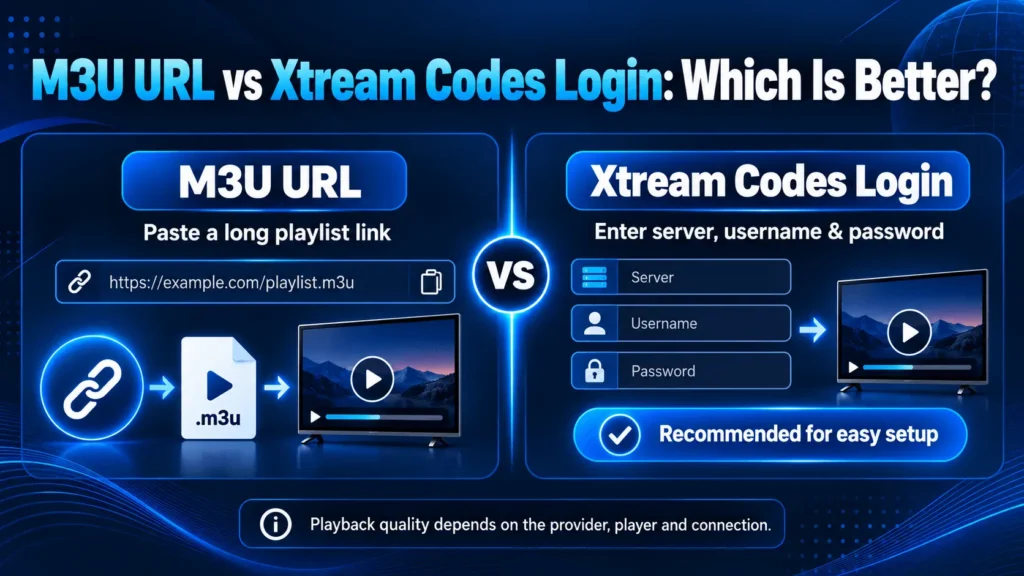
Most modern IPTV applications support Xtream Codes API login.
And in my experience, it’s usually the easier option.
Why?
Because Xtream Codes login automatically imports:
- Live TV
- Movies
- TV Series
- EPG Data
All you need to do is enter:
- Username
- Password
- Portal URL
And you’re done.
No complicated playlist configuration.
No manual setup.
No importing external files.
The application handles everything automatically.
This is why many beginners prefer Xtream Codes login when using:
- IPTV Smarters Pro
- TiviMate
- XCIPTV
- Hot Player
That doesn’t mean M3U is bad.
Far from it.
Many advanced users still prefer M3U playlists because they provide greater flexibility.
Especially when using applications such as:
- VLC Media Player
- Perfect Player
- Smart IPTV
- GSE Smart IPTV
Ultimately, both methods work.
The best choice depends on your preferred IPTV player.
If I had to guess which device is most popular among IPTV users, I’d probably say the Amazon Fire TV Stick.
And for good reason.
It’s affordable.
It’s easy to use.
And most IPTV apps work extremely well on it.
The setup process is surprisingly simple.
Step 1: Install an IPTV Player
First, you’ll need an IPTV player.
Some of the most popular options include:
- IPTV Smarters Pro
- TiviMate
- Hot Player
- XCIPTV
Each application works slightly differently, but the setup process is generally very similar.
Step 2: Choose M3U Playlist Login
After launching the IPTV player, you’ll usually see several login options.
For example:
- Xtream Codes API
- M3U Playlist URL
- Local Playlist
Choose:
M3U Playlist URL
Step 3: Enter Your Playlist Information
Next, enter:
- Playlist Name (any name you want)
- M3U URL (provided in your email)
Double-check everything.
One missing character can cause login problems.
Step 4: Import Playlist
Click:
- Add User
- Import Playlist
- Save
Depending on the size of the playlist, importing may take a few moments.
After that, your IPTV player will load:
- Live TV Channels
- Sports Categories
- Movies
- TV Series
And you’re ready to start watching.
How to Add Xtreme HD IPTV M3U URL to TiviMate

TiviMate has become one of the most popular IPTV applications available today.
In fact, many experienced IPTV users consider it the gold standard.
And honestly?
I understand why.
The interface is clean.
Navigation is fast.
The EPG experience is excellent.
And channel organization is among the best I’ve seen.
TiviMate Setup Steps
Open TiviMate.
Select:
Add Playlist
Choose:
M3U Playlist
Enter your M3U URL.
Select:
Next
TiviMate will automatically begin importing channels.
Once complete, you’ll have access to:
- Live TV
- Sports
- News
- Movies
- Entertainment Channels
One thing I really like about TiviMate is how efficiently it handles large playlists.
Some IPTV apps become sluggish when importing thousands of channels.
TiviMate generally performs extremely well.
How to Add Xtreme HD IPTV M3U URL to IPTV Smarters Pro
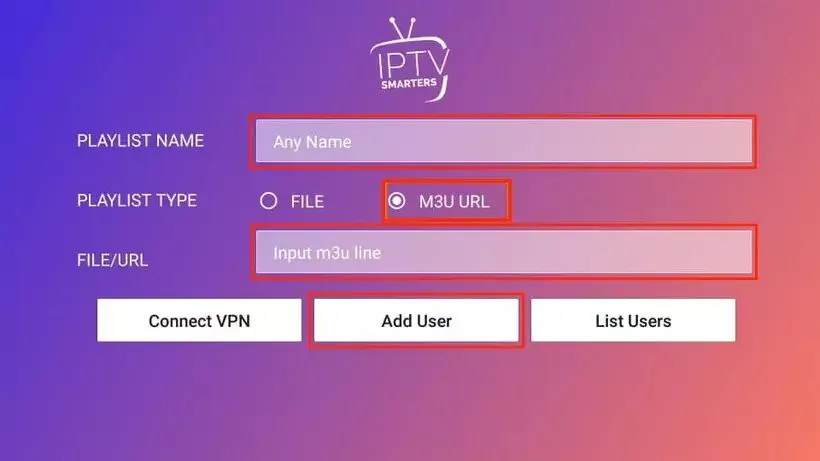
IPTV Smarters Pro is another favorite among IPTV users.
The reason is simple.
It’s beginner-friendly.
Many people who are completely new to IPTV can learn IPTV Smarters within minutes.
IPTV Smarters Setup
Launch IPTV Smarters Pro.
Select:
Load Your Playlist or File/URL
Choose:
M3U URL
Enter:
- Playlist Name
- M3U URL
Click:
Add User
The application will begin downloading:
- Channel Lists
- VOD Content
- Categories
After synchronization completes, your content becomes available inside the app.
Simple.
How to Use Xtreme HD IPTV M3U URL on Android TV
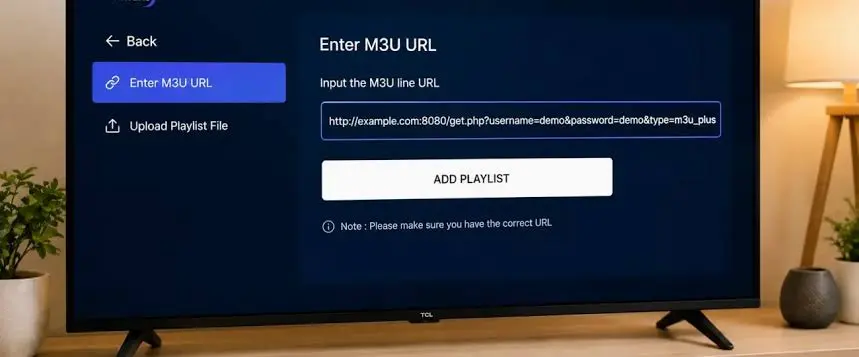
Android TV users follow a process very similar to Firestick users.
Popular Android TV devices include:
- NVIDIA Shield TV
- Google TV
- Chromecast with Google TV
- Android TV Boxes
Most IPTV players available on Firestick are also available on Android TV.
This means you can use:
- TiviMate
- IPTV Smarters Pro
- Hot Player
- XCIPTV
The setup process remains nearly identical.
Install the application.
Choose M3U Playlist Login.
Enter your M3U URL.
Import the playlist.
Done.
How to Use Xtreme HD IPTV M3U URL on Smart TVs
Many people assume IPTV only works on streaming devices.
That’s not true.
Modern Smart TVs support IPTV extremely well.
Popular Smart TV platforms include:
- Samsung Smart TV
- LG Smart TV
- Android Smart TV
Depending on your television, you may be able to install:
- Smart IPTV
- IBO Player
- IPTV Smarters Pro
- Hot Player
Once installed, you’ll simply import your playlist URL and allow the application to load your channels.
Common M3U URL Problems and Solutions
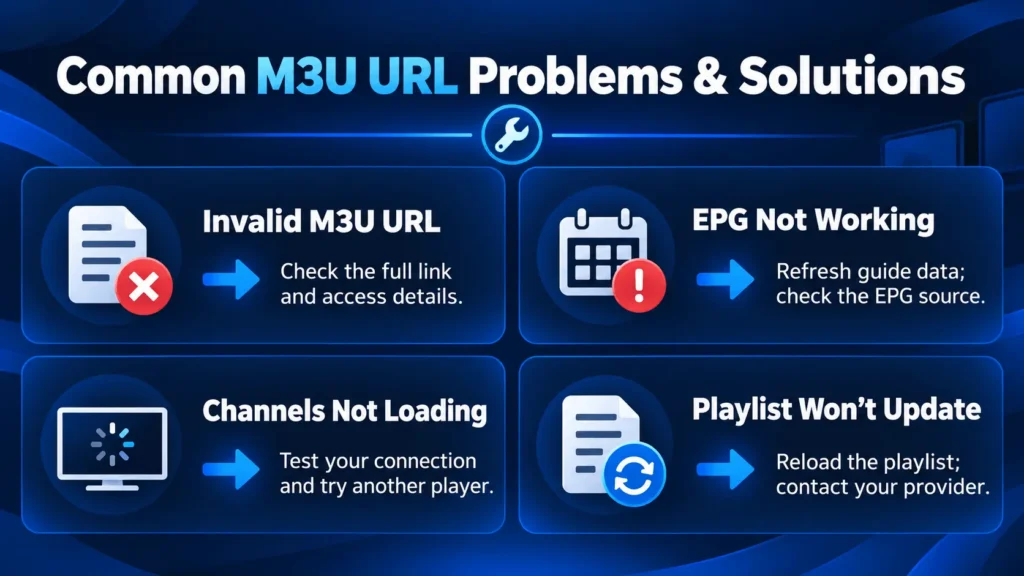
Let’s talk about something that happens to almost every IPTV user eventually.
Errors.
Even experienced IPTV users occasionally run into playlist issues.
The good news?
Most problems are surprisingly easy to solve.
Problem #1: Invalid M3U URL
This is probably the most common issue.
The player reports:
- Invalid URL
- Playlist Failed
- Unable to Load Playlist
The cause?
Usually a typing error.
Copying and pasting the URL directly from your email is usually the safest solution.
Problem #2: Channels Not Loading
Sometimes the playlist imports successfully.
But channels don’t appear.
This can happen because:
- Playlist refresh hasn’t completed
- Internet connection issues
- Application cache problems
A simple playlist refresh often resolves the issue.
It is also recommended to ask your provider to delete countries and content that you are not interested in, so it frees up space in your M3U URL file storage space, which will make it easier to load channels into your favorite media player.
Problem #3: EPG Not Working
Many users assume the playlist controls the EPG.
Not always.
Some IPTV players require separate EPG configuration.
Others import it automatically.
Applications such as TiviMate and IPTV Smarters Pro generally handle EPG data very well.
Problem #4: Login Works on One Device but Not Another
This often surprises beginners.
The playlist works perfectly on Firestick.
But not on Smart TV.
Why?
Because IPTV applications don’t all behave the same way.
Some players support specific playlist formats better than others.
Testing another IPTV application often solves the issue.
What Is the Best IPTV App for Xtreme HD IPTV?
People ask this question all the time.
And honestly…
There isn’t a single correct answer.
Different users prefer different applications.
However, these are the apps we most commonly recommend.
Xtreme HD IPTV App
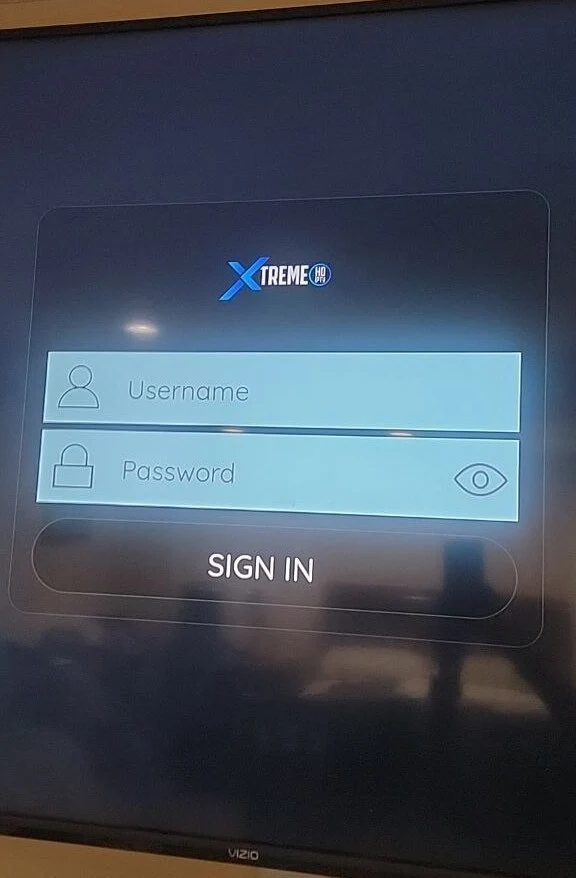
Best for:
- 100% free app users
- Firestick users
- Android users
Strenghts:
- Excellent tivimate-like interface
- Fast navigation
- Premium, free app
TiviMate
Best for:
- Advanced users
- Firestick users
- Android TV users
Strengths:
- Excellent interface
- Fast navigation
- Powerful EPG
IPTV Smarters Pro
Best for:
- Beginners
- Multi-device households
Strengths:
- Easy setup
- User-friendly
- Supports multiple login methods
Hot Player
Best for:
- Simplicity
- Fast setup
Strengths:
- Lightweight
- Easy to navigate
XCIPTV
Best for:
- Users wanting a modern experience
Strengths:
- Good performance
- Attractive interface
The good news is that Xtreme HD IPTV supports virtually all major IPTV applications.
This gives subscribers the flexibility to choose whichever player they prefer.
Frequently Asked Questions
Where Can I Find My Xtreme HD IPTV M3U URL?
Your M3U URL is typically included in the email sent after your order has been processed.
The email usually contains:
- Username
- Password
- Portal URL
- M3U URL
If you cannot find the email, check your spam or junk folder.
Is M3U Better Than Xtream Codes Login?
Not necessarily.
For beginners, Xtream Codes login is often easier because it automatically imports channels, VOD content, and EPG information.
M3U playlists offer more flexibility but may require additional setup depending on the IPTV player.
Can I Use My M3U URL on Multiple Apps?
Yes.
Most IPTV players support M3U playlists.
Examples include:
- IPTV Smarters Pro
- TiviMate
- VLC Media Player
- Perfect Player
- Smart IPTV
Why Is My M3U URL Not Working?
Common causes include:
- Incorrect URL entry
- Expired subscription
- Internet connectivity issues
- Application-specific problems
Always double-check the playlist URL before troubleshooting further.
Final Thoughts
When people first receive their Xtreme HD IPTV login details, the information can look intimidating.
Username.
Password.
Portal URL.
M3U URL.
At first glance, it seems complicated.
But once you understand what each piece does, everything becomes much simpler.
The M3U URL is simply a playlist.
Its purpose is to help IPTV applications locate and display the channels, movies, TV series, and content included with your subscription.
That’s it.
Nothing mysterious.
Nothing complicated.
And while many beginners immediately focus on the M3U URL, the reality is that Xtreme HD IPTV gives you multiple ways to access your subscription.
You can use:
- M3U Playlist Login
- Xtream Codes Login
- Compatible IPTV Players
This flexibility is one of the biggest advantages of modern IPTV.
You’re not locked into a single device.
You’re not forced to use a specific application.
Instead, you can choose the setup method that works best for your viewing habits.
And once everything is configured correctly, you’ll have access to live TV, sports channels, movies, TV series, and much more from virtually any compatible IPTV player.
For most users, the hardest part is simply understanding what all the login details mean.
Hopefully, now you do.